Work Items
Work items are the main objects in Windshift. They represent work your team needs to understand, prioritize, and complete.
Item types
Every work item has a type. You can configure types for each workspace. Each type has its own icon, color, fields, and workflow. Common types include:
- Task
- Bug
- Story
- Feature
- Epic
- Customer request
- Technical debt
- Research spike
You can also create process-specific types, such as "Incident" or "Change request", without writing code.
What belongs in a work item
A useful work item usually has:
- A clear, action-oriented title.
- A description with enough detail to act.
- An assignee.
- A status.
- A priority or ordering position.
- Custom fields that match your process, such as estimates, dates, and components.
- Links, comments, or attachments when relevant.
Windshift supports more than 50 custom field types. These include text, numbers, dates, dropdowns, multi-select, user references, rich text, and checkboxes.
A Checkbox custom field stores a boolean value. Use true and false when you set or filter it through imports, CQL, forms, portals, assets, or the API.
Work item detail view
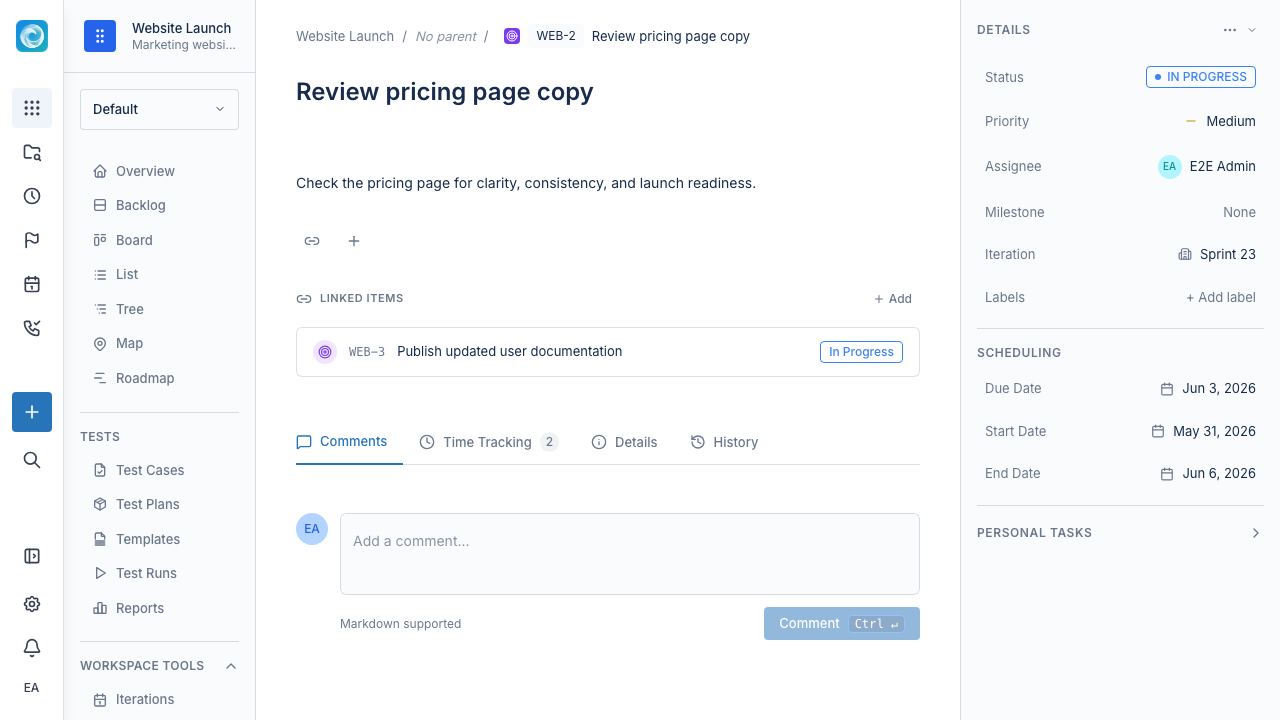
Open a work item when you need more than the summary shown in a board or list. From the detail view you can:
- Edit the title and rich-text description.
- Change status, priority, assignee, labels, iteration, and milestone.
- Add comments with @mentions.
- Attach files.
- Log time or start the built-in timer.
- Link related items, such as blocks, is blocked by, duplicates, and relates to.
- Link pull requests, branches, or commits in GitHub, GitLab, Gitea, or Bitbucket.
- Review the full activity and audit history.
- Create child items when you need to break down the work.
Move a work item to another workspace
Use Move to workspace from the work-item menu when work belongs in another workspace.
- Open the work item.
- Open the item menu and select Move to workspace.
- Select a destination workspace where you can create work.
- Choose the destination item type, status, and priority.
- Review every field in the move preview.
- Confirm the move.
The preview identifies mapped, kept, dropped, partially kept, and detached data. In particular:
- The item receives the next available key in the destination workspace.
- The old key stops resolving and is never reused.
- The item becomes a root item in the destination workspace.
- Direct children stay in the source workspace and become root items there.
- Labels are kept. Custom fields are kept only when the destination item type exposes them.
- Iterations, milestones, projects, time projects, channels, request types, calendar schedules, and approval requests are removed.
- Comments, attachments, worklogs, links, watches, assignee, creator, reporter, and item relations stay with the item.
The move history records the old and new keys and the field decisions shown in the preview.
Keep titles action-oriented
Good titles make boards and lists easier to scan.
Instead of:
- Login issue
- API
- Customer portal
Use:
- Fix expired-session redirect on login
- Add pagination to the projects API
- Let customers reopen portal requests
Break down large work
If a work item has many separate decisions, risks, or owners, split it into smaller pieces. Smaller items are easier to estimate, review, and finish.
Windshift supports parent-child hierarchies, such as Epic, Feature, Story, Task, and Subtask. Track one deliverable end to end while contributors work on its leaf items.
Link related work
Use links when one item depends on, blocks, duplicates, or relates to another. You can configure link types. Links show why work is waiting and what a change might affect.