Boards and Backlogs
Use boards and backlogs to manage work from idea to completion.
Backlogs
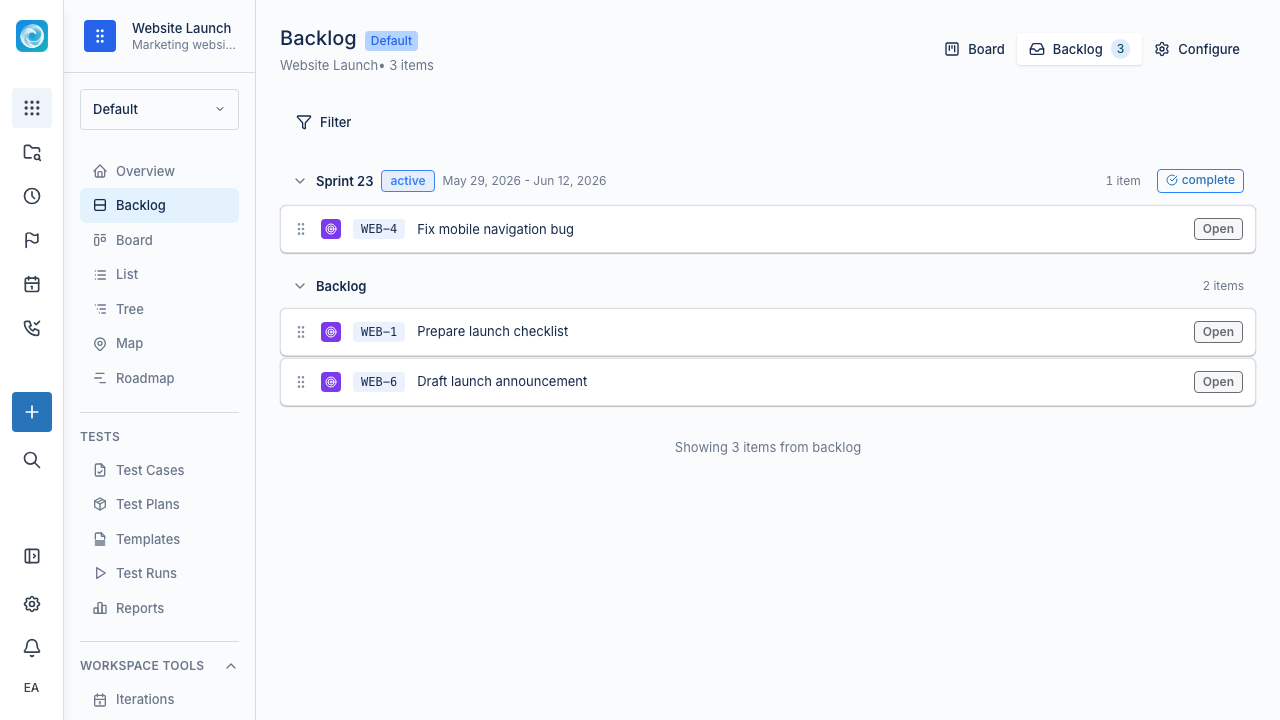
The backlog holds work that is not scheduled in an iteration. Use it to collect, refine, prioritize, and prepare upcoming work.
A useful backlog is:
- Ordered by importance.
- Reviewed regularly.
- Detailed enough to start the next item without a long meeting.
- Not a permanent dumping ground.
Drag items to reorder them. Windshift keeps positions stable during concurrent edits with fractional indexing.
Boards
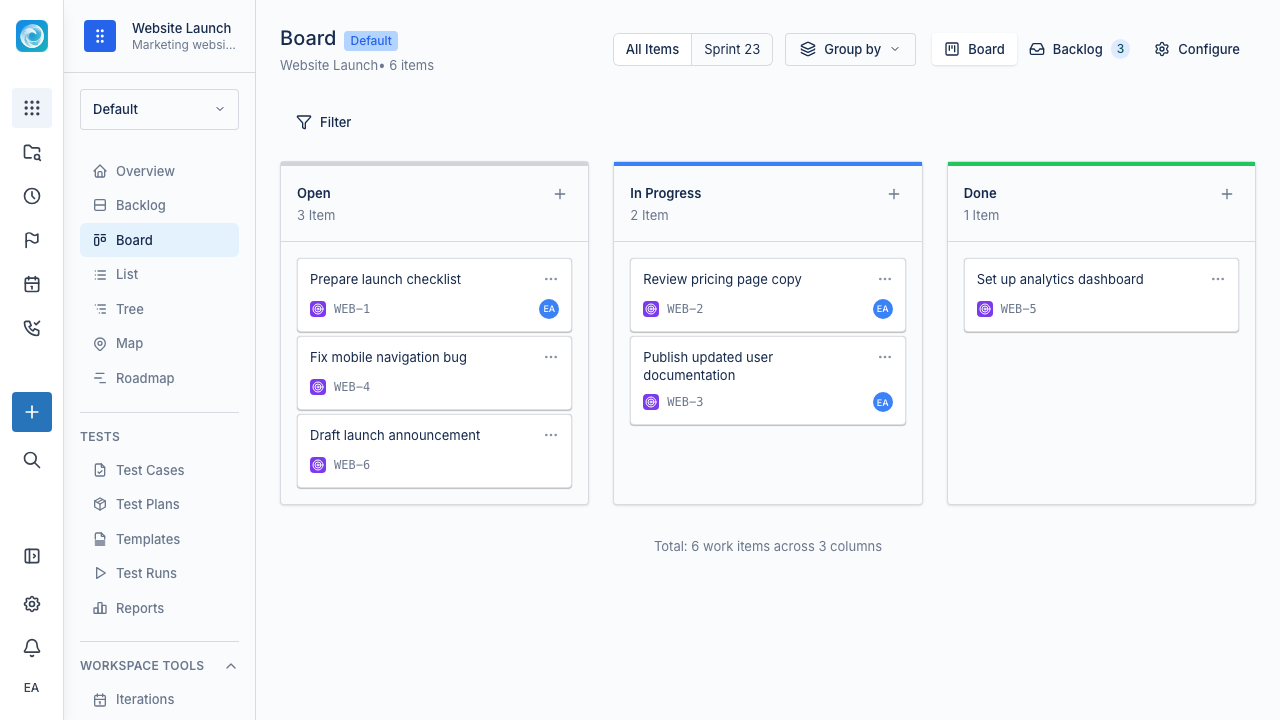
The board shows active work as cards in columns. Each column maps to a workflow status, such as To Do, In Progress, Review, or Done. Drag a card between columns to change its status.
Use boards to:
- See work in progress.
- Spot blocked or stale work.
- Run standups and check-ins.
- Review changes since the last check-in.
Configure board card fields
Open the board configuration and select Card fields to control the information shown on each card.
- Add built-in values from System fields.
- Add configured values from Custom fields.
- Drag selected fields to change their display order.
- Remove a field from the card without deleting its value from the work item.
System and custom fields are listed separately. If the custom field you need does not exist, a system administrator can open custom-field administration from the same section.
Checkbox custom fields render as boolean values on cards. An unchecked value remains false; it is not treated as missing data.
Moving work between backlog and board
There are two common patterns:
- Iteration-based: Assign backlog items to an iteration, such as a sprint or release. The iteration board groups those items by status.
- Flow-based: Pull items from the top of the backlog and change their status as work progresses. The board shows everything outside a backlog status.
Both patterns work in Windshift. Use the one that matches your planning process.
Practical workflow
A simple team workflow often looks like this:
- Add new ideas, bugs, and requests to the backlog.
- Review and order the backlog regularly.
- Pull the next ready items into the active board (or into the current iteration).
- Move cards as work progresses.
- Review Done work before closing the iteration.
Practical tips
- Keep active work small. Long boards hide problems.
- Review stale items regularly. If a card has not moved in a week, find out why.
- Show blocked items with a Blocked column, label, or link to the blocker.
- Use the backlog for prioritization, not status reporting.
- Use the board for active delivery, not long-term storage.